Your brand and photos
How your posts look
Not quite your style? Copy the look of posts you love, or pick a ready-made style. It takes about a minute.
Last updated
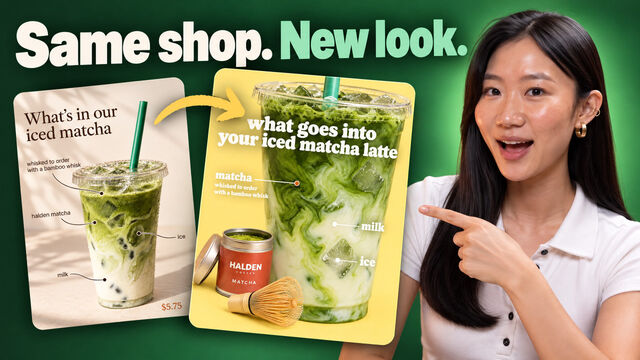
Change your picture style
On the Brand page, under How your posts look, tap Change style. There are two ways to choose a new look:
- Copy a look you love: add 3 to 6 posts you like from any account. Screenshots from Instagram work. You can also pick photos from your Library and add a sentence, like "brighter than these". We copy their colors, light, framing and type, never what's in them, so your own products stay yours.
- Or start from a style: pick one of our ready-made styles, like Pastel pop, Retro 70s, Black & white editorial or Clean & minimal.
Pip takes about a minute to look at them, then shows you what he'll use: the colors and a few words about the style. Tap Looks good to keep it, or Put back my old style. Your next drafts use the new look, and the change also appears under Recent changes, where one tap puts the old look back.
To copy the look of a photo that's already in your Library, open it and tap Copy its look.
Your colors
Under Your colors, choose how we use them:
- As an accent: your colors show up as a detail, the way your logo does. Each post picks colors that suit it, so your feed doesn't look the same every week. This is where every brand starts.
- On every post: every post keeps to your colors.
Tap a color to change it, tap Add a color to add one, or tap the X beside a color to remove it. Remove all colors lets each post pick its own. If you chose a style, its colors lead and yours only appear where they suit it.
Your logo
Upload your logo under How your posts look. It can be a JPG, PNG or WebP file up to 10 MB. We use your exact file and never redraw it. We only add it to a picture when you ask in Chat, for example "Put our logo on Friday's post."
Without a logo, we lean on your colors and bold type, so your posts still look like yours.
Direction
Direction decides how far we take your look:
- Match my look: stay close to how your website and photos look today.
- Go further: keep your colors and style, with more polished, eye-catching pictures.
People in pictures
Choose who can appear in the pictures and videos we make:
| Choice | What it means |
|---|---|
| Made-up people | Pictures and videos can show people we make up, faces included, and a made-up presenter can talk about what you sell. |
| Background only | Your work is always the subject. Made-up people only appear in the background, like hands at work or a passing customer. You can still ask for a Person on camera video. |
| Only my photos | We never make up people. The only people in your pictures come from photos you gave us. Videos can show hands doing the work. |
| No people | Pictures never show people, only your products and places. Videos can show hands doing the work, and nothing more. |
When you name the people in one of your photos, you're telling us they're happy to appear in your posts. A Person on camera video always stars someone we create, so it's only offered with Made-up people or Background only. See Videos.